---
title: Creating a TikTok Insights Report from Conversations
description: Learn how to create TikTok Insights reports by building audiences from conversations about specific topics, brands, keywords, events, or phrases.
---
[Skip to content](https://knowledge.audiense.com/en/knowledge/creating-a-tiktok-insights-report-from-conversations#main-content)
English
Show submenu for translations

Open main navigation
Close main navigation
- English
Show submenu for translations
- [Contact us](https://share.hsforms.com/1Q15CYppjRb-bFgd0CZZWwg4k1o4)
[Contact us](https://share.hsforms.com/1Q15CYppjRb-bFgd0CZZWwg4k1o4)
How can we help you?
- There are no suggestions because the search field is empty.
1. [Insights & Connect Knowledge Base](https://knowledge.audiense.com/en/knowledge?hsLang=en)
2. [Audiense Insights](https://knowledge.audiense.com/en/knowledge/audiense-insights?hsLang=en)
3. [Audiense TikTok Insights](https://knowledge.audiense.com/en/knowledge/audiense-insights?hsLang=en#audiense-tiktok-insights)
# Creating a TikTok Insights Report from Conversations
## Learn how to create TikTok Insights reports by building audiences from conversations about specific topics, brands, keywords, events, or phrases.
### **Overview**
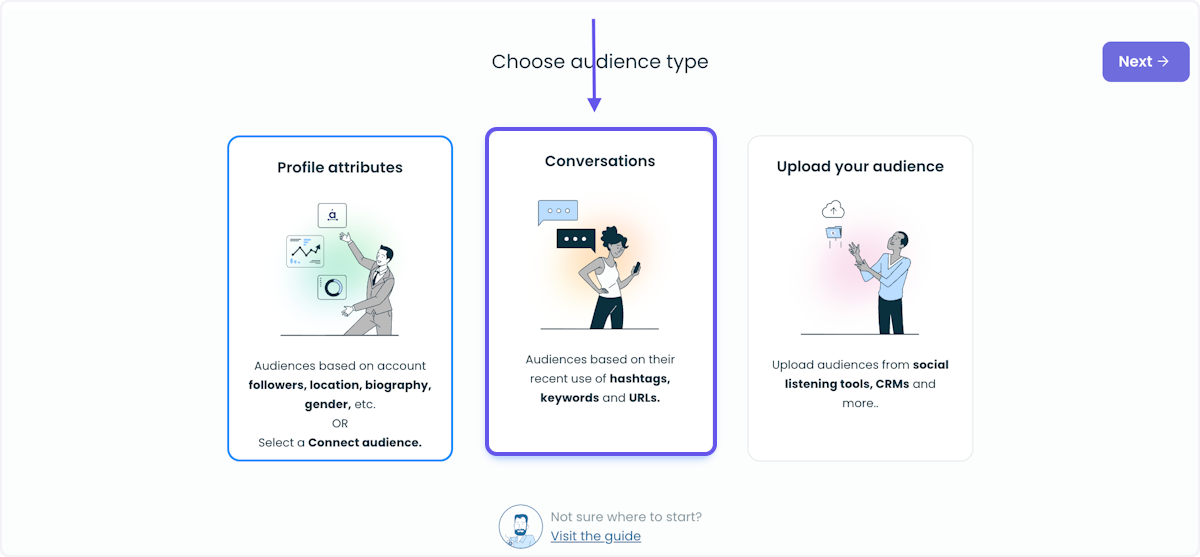
Follow this article to learn how to create TikTok Insights reports using the **Conversations** audience creation method. This workflow allows users to build audiences based on the topics people discuss on TikTok by searching for keywords, brands, products, events, or other relevant phrases.
The Conversations method is useful when you want to analyze people who are actively talking about a particular subject rather than defining an audience using demographic or profile attributes. This makes it ideal for researching brand conversations, competitors, product categories, cultural moments, industry trends, or event-related discussions.
### **Building the Query**
The query builder allows you to define the conversation topics that Audiense uses to identify your audience.
Type one or more keywords or phrases into the search field to find TikTok users who have posted about those topics. Queries can be as simple or as advanced as needed, using Boolean operators to broaden or refine your audience.
#### **OR Operator:**
Use the OR operator to broaden your audience by including people who mention any of the specified terms.
For example:
`FIFA OR football`
This query returns users who have mentioned either FIFA or football.
#### **AND Operator:**
Use theAND operator to narrow your audience by requiring users to mention multiple terms.
For example:
`FIFA AND "World Cup"`
This query returns only users who have mentioned both FIFA and World Cup.
#### **AND NOT Operator:**
Use AND NOT to exclude conversations containing specific terms.
For example:
`XBOX AND NOT PlayStation`
This query returns users who mention XBOX while excluding users who also mention PlayStation.
#### **Exact Phrase Matching**
To search for an exact phrase, wrap multiple words in double quotation marks.
For example:
`"World Cup Launch Edition"`
This returns users who have posted that exact phrase rather than matching the individual words separately.
### **Combining Operators**
You can combine Boolean operators and parentheses to create more advanced audience definitions.
For example:
`FIFA AND "World Cup Launch Edition" OR (XBOX AND NOT PlayStation)`
Using parentheses helps group related conditions and gives you greater control over how your query is evaluated.
The query builder supports searches up to 10,000 characters, allowing you to create highly targeted audience definitions.
### **Date Range**
Use the From and To date fields to specify the time period in which users must have posted about your selected topics.
By default, the date range covers approximately the previous three months. You can adjust the range to focus on a specific campaign, product launch, event, or other time-sensitive period.
Selecting an appropriate date range helps ensure your audience reflects the conversations most relevant to your research.
### **Validate Your Query**
Before creating your report, select Validate query to estimate the size of your audience.
The validation indicator next to Validate query to estimate the size displays the status of your query and confirms whether it returns a meaningful audience.
If the estimated audience is larger or smaller than expected, you can refine your keywords, adjust your Boolean logic, or modify the selected date range before validating the query again. Validating your query before generating the report helps ensure you create an audience that aligns with your research objectives.
- [Getting Started](https://knowledge.audiense.com/en/knowledge/getting-started?hsLang=en#main-content)
- [Getting started with Audiense Insights](https://knowledge.audiense.com/en/knowledge/getting-started?hsLang=en#getting-started-with-audiense-insights)
- [Getting started with Audiense Connect (Twitter Marketing Plan)](https://knowledge.audiense.com/en/knowledge/getting-started?hsLang=en#getting-started-with-audiense-connect-twitter-marketing-plan)
- [Audiense Insights](https://knowledge.audiense.com/en/knowledge/audiense-insights?hsLang=en#main-content)
- [Audience Intelligence Reports](https://knowledge.audiense.com/en/knowledge/audiense-insights?hsLang=en#audience-intelligence-reports)
- [Audiense TikTok Insights](https://knowledge.audiense.com/en/knowledge/audiense-insights?hsLang=en#audiense-tiktok-insights)
- [Audiense Integrations](https://knowledge.audiense.com/en/knowledge/audiense-insights?hsLang=en#audiense-integrations)
- [Video Tutorials & Strategic Guides](https://knowledge.audiense.com/en/knowledge/audiense-insights?hsLang=en#video-tutorials-strategic-guides)
- [Audiences: types and definitions](https://knowledge.audiense.com/en/knowledge/audiense-insights?hsLang=en#audiences-types-and-definitions)
- [How our customers use Audiense Insights](https://knowledge.audiense.com/en/knowledge/audiense-insights?hsLang=en#how-our-customers-use-audiense-insights)
- [Audiense Connect](https://knowledge.audiense.com/en/knowledge/audiense-connect?hsLang=en#main-content)
- [Basic Navigation](https://knowledge.audiense.com/en/knowledge/audiense-connect?hsLang=en#basic-navigation)
- [Audiences](https://knowledge.audiense.com/en/knowledge/audiense-connect?hsLang=en#audiences)
- [Analytics](https://knowledge.audiense.com/en/knowledge/audiense-connect?hsLang=en#analytics)
- [Engagement](https://knowledge.audiense.com/en/knowledge/audiense-connect?hsLang=en#engagement)
- [Audiense Monitoring](https://knowledge.audiense.com/en/knowledge/audiense-connect?hsLang=en#audiense-monitoring)
- [Understanding your Account](https://knowledge.audiense.com/en/knowledge/understanding-your-account?hsLang=en#main-content)
- [Audiense Insights](https://knowledge.audiense.com/en/knowledge/understanding-your-account?hsLang=en#audiense-insights)
- [Feedback & Support](https://knowledge.audiense.com/en/knowledge/understanding-your-account?hsLang=en#feedback-support)
- [Audiense Connect: Twitter Marketing](https://knowledge.audiense.com/en/knowledge/understanding-your-account?hsLang=en#audiense-connect-twitter-marketing)
- [Plans & Billing](https://knowledge.audiense.com/en/knowledge/plans-billing?hsLang=en#main-content)
- [Payments & Cancellations](https://knowledge.audiense.com/en/knowledge/plans-billing?hsLang=en#payments-cancellations)
- [Add-ons](https://knowledge.audiense.com/en/knowledge/plans-billing?hsLang=en#add-ons)
- [How-to's & FAQs](https://knowledge.audiense.com/en/knowledge/how-tos-faqs?hsLang=en#main-content)
- [Audiense Insights How-to's](https://knowledge.audiense.com/en/knowledge/how-tos-faqs?hsLang=en#audiense-insights-how-tos)
- [Audiense Insights FAQs](https://knowledge.audiense.com/en/knowledge/how-tos-faqs?hsLang=en#audiense-insights-faqs)
- [Audiense Connect FAQs](https://knowledge.audiense.com/en/knowledge/how-tos-faqs?hsLang=en#audiense-connect-faqs)
- [Audiense Connect How-to's](https://knowledge.audiense.com/en/knowledge/how-tos-faqs?hsLang=en#audiense-connect-how-tos)
[-1.svg "Audiense Logo (1)-1")](http://www.buxtonco.com)
[mailto:email@email.com](mailto:email@email.com)
Copyright © 2026, Buxton