---
title: Community Wall
description: Learn how to use the Community Wall to browse, search, organize, and manage users within your Audiense Connect communities.
---
[Skip to content](https://knowledge.audiense.com/en/knowledge/knowledge/community-wall#main-content)
English
Show submenu for translations

Open main navigation
Close main navigation
- English
Show submenu for translations
- [Contact us](https://share.hsforms.com/1Q15CYppjRb-bFgd0CZZWwg4k1o4)
[Contact us](https://share.hsforms.com/1Q15CYppjRb-bFgd0CZZWwg4k1o4)
How can we help you?
- There are no suggestions because the search field is empty.
1. [Insights & Connect Knowledge Base](https://knowledge.audiense.com/en/knowledge?hsLang=en)
2. [Audiense Connect](https://knowledge.audiense.com/en/knowledge/audiense-connect?hsLang=en)
3. [Basic Navigation](https://knowledge.audiense.com/en/knowledge/audiense-connect?hsLang=en#basic-navigation)
# Community Wall
## Learn how to use the Community Wall to browse, search, organize, and manage users within your Audiense Connect communities.
The **community wall** is a grid view of the users who belong to the audience or community of the account or source you have selected, or the search or filter you have applied. Each **user card** represents an individual user.
The **community bottom bar** and the **search/filter sidebar** are **always** active when viewing the community wall.
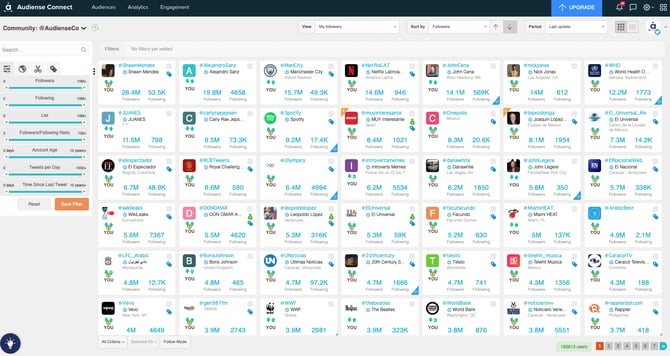
To **select/deselect** the user click the small **checkbox** in the top right corner of the **user card**.
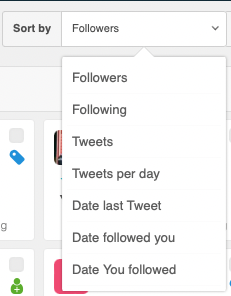
Use the **sort by** drop-up menu to change theorder the users are shown on the screen. Toggle **ascending**/**descending**order using the **arrow**.
You can alter the style of user card from **grid** to **detailed** at the top of the page with the following buttons:
**Grid** – This is the default view. It displays various **user cards** with basic information on each.
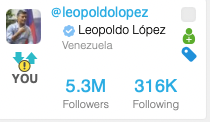
It shows the following:
- **Avatar** – Click to open the user details sidebar.
- **@username** – Click to open the user details sidebar.
- **Full** **name** – The name of the verified user.
- **Location** – As defined by the user in their profile.
- **Followers** – The number of followers the user has.
- **Following** – The number of people the user is following.
- **Relationship** **icon** – Shows the relationship between you and the user.
**Detailed** – This view displays fewer user cards than the standard grid view but gives more information on each.
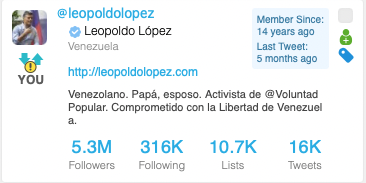
The detailed **user card** shows the same information as the standard user card but adds the following:
- **Member since** – How long since the user joined Twitter.
- **Last Tweet** – How long since the last Tweet.
- **URL** – The URL the user includes in the Twitter profile.
- **Bio description** – the description the user provided in their Twitter profile bio.
- **Lists** – The number of lists the user belongs to.
- **Tweets** – The number of Tweets the user has made.
The **relationship icon** of the user card is quite intuitive and shows the relationship which exists between you and the user.
You follow each other (reciprocal follow):

Neither of you follow each other (no relationship):

They follow you but you don’t follow them (follow not reciprocated by you):

You follow them but they don’t follow you (your follow not reciprocated):

Some **user cards** have a yellow alert symbol over the relationship icon. This denotes a previous negative change in the relationship, i.e. you unfollowed this user or they unfollowed you.

If you mouseover the user card, two options appear.
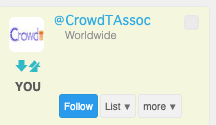
A **follow** or **unfollow** button depending on the current follow status, i.e. **follow** someone you don’t follow or **unfollow** someone you do follow.
A **list** drop-down menu for **list management** functions, you can:
- Select the checkbox **– Add** the user to that list.
- Deselect the checkbox **– Remove** the user from that list.
- Click the **List/Add new list** button **– Create** a new list.
A **more** drop-down menu to access some **community management actions** specific to that user:
- **Mute**
- **Un-mute**
- **Edit tags**
- **Edit notes**
- **Add as a source**
- **Individual BTTT**
- **View Tweets**
Some **user cards** have a golden list symbol in the top left corner. This means a **note** has been added to this user. Mouseover the symbol to see the note or click to edit in the emerging window.
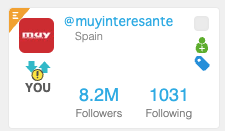
Some **user cards** have a small icon of a **blue check mark** to the left of the name. This means that this user is verified and the account is authentic.

Some **user cards** have a small icon of a **green person** and/or a tag. The person means that the user has been added to a **whitelist** and cannot be unfollowed.

Some **user cards** have a small icon of a **purple skull** and/or a tag. The skull means that the user has been added to a **blacklist** and cannot be followed.

The **tag**(s) associated with a user can be seen, together with the profile description, if you mouseover the user name.
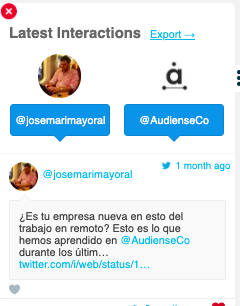
Some **user cards** have a blue **@** symbol in the bottom right corner.

Click this to see the **latest interactions** between you and this user in the emerging sidebar. You can **like** directly from the sidebar.
Click the **@username** or **avatar** on the **user card** to see more info about this user in the emerging **user details sidebar**.
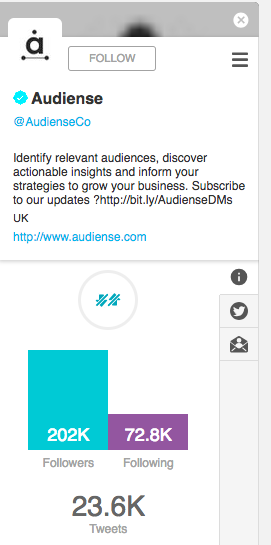
- **Basic information** is always visible
- **Avatar**
- **Name**
- **@username**
- **Bio**
- **Location**
- **URL** (if provided)
Use the **three vertical tabs** to show more information in the sidebar. You can see:
- **Info tab**
- **Relationship icon**
- **Followers**
- **Following**
- **Tweets**
- **Last Tweet** – How long since the last Tweet.
- **Member since** – How long since they created the Twitter account.
- **Follow date** – How long since you followed the user (the date that Audiense synchronised it).
- **Unfollow date** – How long since you unfollowed the user (the date that Audiense synchronised it).
- **Added** – How long since Audiense synchronised the user for the first time.
- **Tweets** **tab** – This shows the latest Tweets which you can **like** directly from the sidebar.
Click on the three horizontal lines to access some **community management actions** specific to that user:
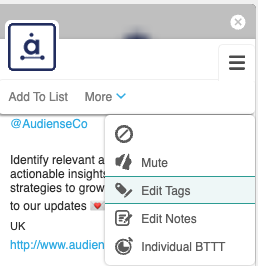
- **Add to list**
- **Block**
- **Mute**
- **Edit Tags**
- **Edit Notes**
- **Individual BTTT**
- [Getting Started](https://knowledge.audiense.com/en/knowledge/getting-started?hsLang=en#main-content)
- [Getting started with Audiense Insights](https://knowledge.audiense.com/en/knowledge/getting-started?hsLang=en#getting-started-with-audiense-insights)
- [Getting started with Audiense Connect (Twitter Marketing Plan)](https://knowledge.audiense.com/en/knowledge/getting-started?hsLang=en#getting-started-with-audiense-connect-twitter-marketing-plan)
- [Audiense Insights](https://knowledge.audiense.com/en/knowledge/audiense-insights?hsLang=en#main-content)
- [Audience Intelligence Reports](https://knowledge.audiense.com/en/knowledge/audiense-insights?hsLang=en#audience-intelligence-reports)
- [Audiense TikTok Insights](https://knowledge.audiense.com/en/knowledge/audiense-insights?hsLang=en#audiense-tiktok-insights)
- [Audiense Integrations](https://knowledge.audiense.com/en/knowledge/audiense-insights?hsLang=en#audiense-integrations)
- [Video Tutorials & Strategic Guides](https://knowledge.audiense.com/en/knowledge/audiense-insights?hsLang=en#video-tutorials-strategic-guides)
- [Audiences: types and definitions](https://knowledge.audiense.com/en/knowledge/audiense-insights?hsLang=en#audiences-types-and-definitions)
- [How our customers use Audiense Insights](https://knowledge.audiense.com/en/knowledge/audiense-insights?hsLang=en#how-our-customers-use-audiense-insights)
- [Audiense Connect](https://knowledge.audiense.com/en/knowledge/audiense-connect?hsLang=en#main-content)
- [Basic Navigation](https://knowledge.audiense.com/en/knowledge/audiense-connect?hsLang=en#basic-navigation)
- [Audiences](https://knowledge.audiense.com/en/knowledge/audiense-connect?hsLang=en#audiences)
- [Analytics](https://knowledge.audiense.com/en/knowledge/audiense-connect?hsLang=en#analytics)
- [Engagement](https://knowledge.audiense.com/en/knowledge/audiense-connect?hsLang=en#engagement)
- [Audiense Monitoring](https://knowledge.audiense.com/en/knowledge/audiense-connect?hsLang=en#audiense-monitoring)
- [Understanding your Account](https://knowledge.audiense.com/en/knowledge/understanding-your-account?hsLang=en#main-content)
- [Audiense Insights](https://knowledge.audiense.com/en/knowledge/understanding-your-account?hsLang=en#audiense-insights)
- [Feedback & Support](https://knowledge.audiense.com/en/knowledge/understanding-your-account?hsLang=en#feedback-support)
- [Audiense Connect: Twitter Marketing](https://knowledge.audiense.com/en/knowledge/understanding-your-account?hsLang=en#audiense-connect-twitter-marketing)
- [Plans & Billing](https://knowledge.audiense.com/en/knowledge/plans-billing?hsLang=en#main-content)
- [Payments & Cancellations](https://knowledge.audiense.com/en/knowledge/plans-billing?hsLang=en#payments-cancellations)
- [Add-ons](https://knowledge.audiense.com/en/knowledge/plans-billing?hsLang=en#add-ons)
- [How-to's & FAQs](https://knowledge.audiense.com/en/knowledge/how-tos-faqs?hsLang=en#main-content)
- [Audiense Insights How-to's](https://knowledge.audiense.com/en/knowledge/how-tos-faqs?hsLang=en#audiense-insights-how-tos)
- [Audiense Insights FAQs](https://knowledge.audiense.com/en/knowledge/how-tos-faqs?hsLang=en#audiense-insights-faqs)
- [Audiense Connect FAQs](https://knowledge.audiense.com/en/knowledge/how-tos-faqs?hsLang=en#audiense-connect-faqs)
- [Audiense Connect How-to's](https://knowledge.audiense.com/en/knowledge/how-tos-faqs?hsLang=en#audiense-connect-how-tos)
[-1.svg "Audiense Logo (1)-1")](http://www.buxtonco.com)
[mailto:email@email.com](mailto:email@email.com)
Copyright © 2026, Buxton