
Overview
Follow this guide to learn how to use the Audiense Insights Reports Dashboard.
The Reports Dashboard serves as the central location for creating, organizing, and managing your Audiense Insights reports. From this page, you can search for reports, monitor report generation, access completed analyses, and perform common management tasks such as sharing, downloading, renaming, or cloning reports.
Whether you're creating your first report or managing hundreds of existing reports, understanding the Reports Dashboard will help you work more efficiently.
Understanding the Reports Dashboard
The Reports Dashboard displays every Insights report available within your account.
From this page, you can:
- Search for existing reports.
- Create new reports.
- View report status.
- Manage completed reports.
- Share reports with colleagues.
- Download reports for offline use.
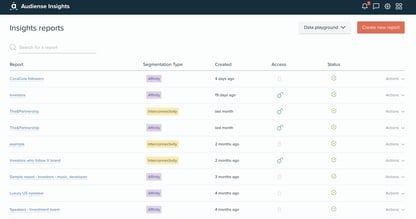
Dashboard Overview
Each report displayed in the dashboard includes key information that helps you quickly identify its purpose and current status.
The dashboard includes the following columns and controls.
| Item | Description |
|---|---|
| Search Report | Search your report library by entering at least three characters. Matching reports are displayed automatically. |
| Create New Report | Opens the report creation workflow to define a new audience and generate a report. |
| Report | Displays the report name. |
| Segmentation Type | Indicates whether the report uses Interconnections or Affinities segmentation. |
| Created | Displays the date the report was created. |
| Access | Indicates whether the report is private or shared. Shared reports can be accessed through a public link. |
| Status | Displays the current report status, such as Generating, Finished, Failed, or Demo. |
Understanding Report Status
Each report includes a status indicator that reflects its current state.
| Status | Description |
|---|---|
| Generating | The report is currently being created. |
| Finished | The report has completed successfully and is ready to view. |
| Failed | The report could not be generated successfully. |
| Demo | Sample reports included with your account for demonstration purposes. |
Demo reports are included with every account and are typically displayed near the bottom of the report list.
Managing Reports
Each report includes an Actions menu that provides several management options.
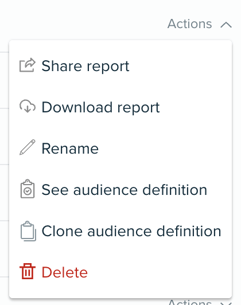
The available actions include:
Share Report
Generate a shareable, read-only link for the report. The shared report can be distributed by copying the generated URL or sending it directly by email. Shared reports remain interactive but do not include activation features.
Download Report
Download the report in either PDF or PowerPoint (PPT) format. You can choose between downloading:
- A complete report
- A summary report
Reports can also be emailed directly to yourself or another recipient.
Rename Report
Update the report name to better reflect the audience or research objective. Renaming a report does not affect its contents or analysis.
View Audience Definition
Display the audience criteria that were used to generate the report. This allows you to review the filters, segmentation method, and audience definition without opening the report creation workflow.
Clone Audience Definition
Create a new report using the same audience definition as an existing report. After selecting this option, the original audience definition is loaded into the report creation workflow, allowing you to:
- Modify the audience criteria.
- Add or remove filters.
- Generate a report using a different segmentation method.
- Create a similar report without rebuilding the audience from scratch.
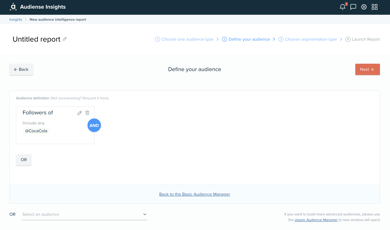
This feature is particularly useful when comparing multiple segmentation methods or creating variations of an existing report.
Delete Report
Delete a report from your dashboard. Deleting a report permanently removes it from your account and cannot be undone.
Report Storage Limits
The number of reports you can store depends on your subscription.
| Plan | Maximum Reports |
|---|---|
| Insights Plans | Up to 300 reports |
| Free Plan | Up to 3 reports |
| Twitter Marketing Plan | Up to 3 reports |
If your dashboard reaches its storage limit, you must delete existing reports before creating new ones.
Users on Free or Twitter Marketing plans must also remove older reports as part of their monthly report refresh process.
If you have questions about report limits, contact the Audiense Support team at help@audiense.com.