---
title: "Getting Started with Audiense Connect: The Basics"
description: Learn the fundamentals of Audiense Connect, including navigating the homepage, managing social contacts, adding collaborators, authenticating X (formerly Twitter) accounts, and understanding the main dashboard.
---
[Skip to content](https://knowledge.audiense.com/en/knowledge/knowledge/step-1-the-basics#main-content)
English
Show submenu for translations

Open main navigation
Close main navigation
- English
Show submenu for translations
- [Contact us](https://share.hsforms.com/1Q15CYppjRb-bFgd0CZZWwg4k1o4)
[Contact us](https://share.hsforms.com/1Q15CYppjRb-bFgd0CZZWwg4k1o4)
How can we help you?
- There are no suggestions because the search field is empty.
1. [Insights & Connect Knowledge Base](https://knowledge.audiense.com/en/knowledge?hsLang=en)
2. [Getting Started](https://knowledge.audiense.com/en/knowledge/getting-started?hsLang=en)
3. [Getting started with Audiense Connect (Twitter Marketing Plan)](https://knowledge.audiense.com/en/knowledge/getting-started?hsLang=en#getting-started-with-audiense-connect-twitter-marketing-plan)
# Getting Started with Audiense Connect: The Basics
## Learn the fundamentals of Audiense Connect, including navigating the homepage, managing social contacts, adding collaborators, authenticating X (formerly Twitter) accounts, and understanding the main dashboard.
**Overview**
Follow this article to learn the basics of Audiense Connect.
Before creating audiences, reports, or engagement campaigns, it's helpful to become familiar with the core areas of the platform. Audiense Connect is organized around accounts, audiences, and engagement tools, making it easy to manage your communities and marketing activities from a central location.
This article introduces the main areas of the platform that you'll use as you begin working with Audiense Connect.
---
### **Navigate the Homepage**
When you first open Audiense Connect, you'll arrive on the homepage, which serves as the central hub for managing your accounts, audiences, and engagement activities.
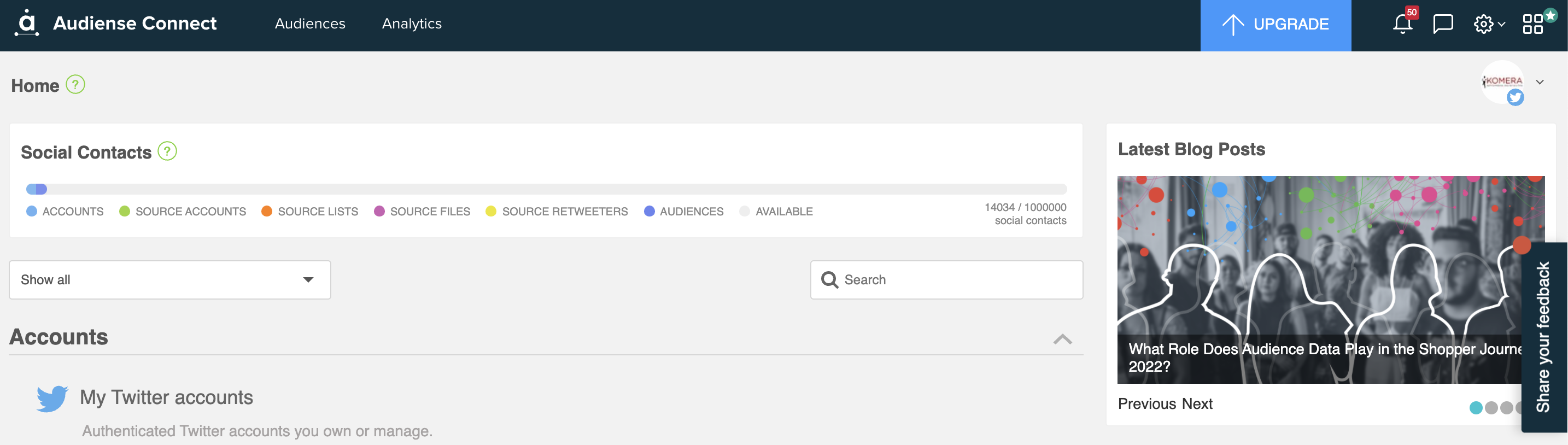
Across the top of the page are three primary navigation menus: Audiences, Analytics, and Engagement. These menus provide access to the platform's core functionality, allowing you to create reports, manage chatbots, monitor activity, and work with your audiences.
The homepage also contains interactive panels for your authenticated accounts, audiences, and sources such as X lists or imported users. Selecting one of these panels allows you to quickly access the associated information and management tools.
---
### **Understand Social Contacts**
The Social Contacts section provides an overview of your current contact usage within Audiense Connect.

Social Contacts include the people who follow you, the people you follow, and the followers and following associated with any accounts or sources you've added to an Audiense audience. In addition to displaying your current usage, this section also shows how many Social Contacts are available under your subscription plan.
---
### **Add Collaborators**
Collaboration Teams allow you to control who has access to your authenticated X accounts and what actions they can perform within Audiense Connect.
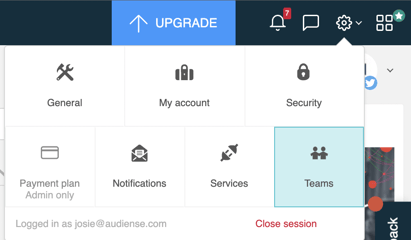
To manage collaborators, select the Settings icon in the upper-right corner of the homepage and choose Teams. From there, you can view your existing teams, create new ones, and manage user permissions for coworkers or clients.
Using Collaboration Teams makes it easier to securely share account management responsibilities while maintaining control over user access.
---
### **Authenticate an X Account**
Accounts and Sources are fundamental components of Audiense Connect. An account represents either your own authenticated X account or a client account that you manage within the platform.
To authenticate an account, select Add an Owned Account from the homepage and choose Twitter Account from the Add New Account window. You'll then be prompted to enter your X account credentials before selecting Authorize App to complete the authentication process.
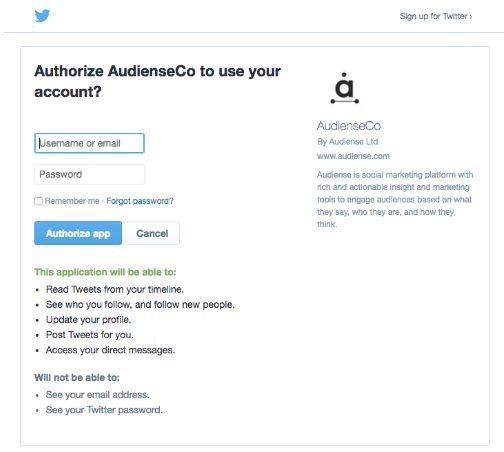
Once authentication is complete, the account becomes available throughout Audiense Connect for audience management and engagement activities.
---
### **Navigate the Dashboard**
Selecting the upper portion of any Account, Audience, or Source panel opens its dashboard.
For example, selecting the **@Audiense** account opens the account dashboard, where you can review account widgets, export dashboard information as a PDF, manually synchronize your X account with Audiense, and access additional account management features.
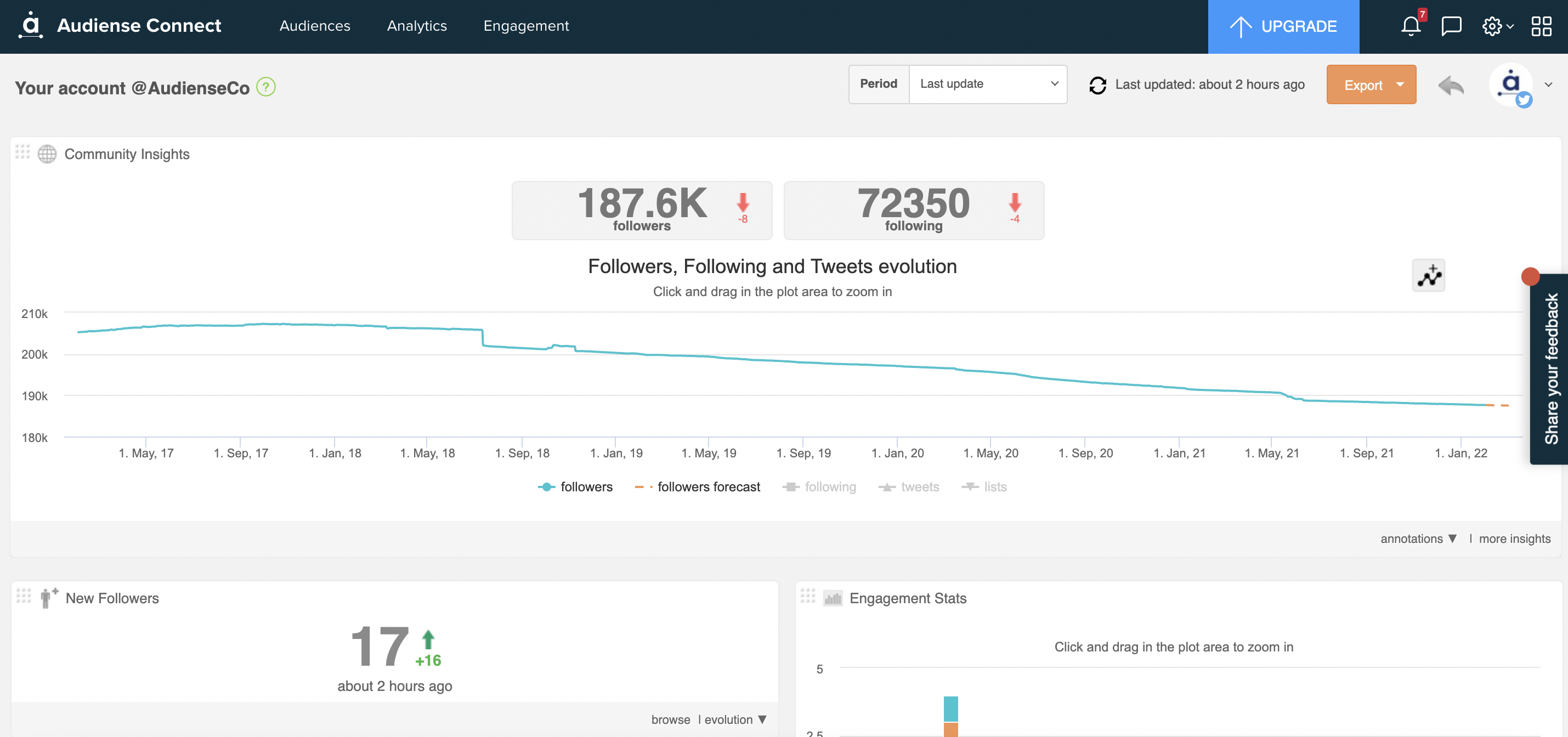
Each dashboard provides more detailed information about the selected account, audience, or source and serves as the primary location for managing those resources.
- [Getting Started](https://knowledge.audiense.com/en/knowledge/getting-started?hsLang=en#main-content)
- [Getting started with Audiense Insights](https://knowledge.audiense.com/en/knowledge/getting-started?hsLang=en#getting-started-with-audiense-insights)
- [Getting started with Audiense Connect (Twitter Marketing Plan)](https://knowledge.audiense.com/en/knowledge/getting-started?hsLang=en#getting-started-with-audiense-connect-twitter-marketing-plan)
- [Audiense Insights](https://knowledge.audiense.com/en/knowledge/audiense-insights?hsLang=en#main-content)
- [Audience Intelligence Reports](https://knowledge.audiense.com/en/knowledge/audiense-insights?hsLang=en#audience-intelligence-reports)
- [Audiense TikTok Insights](https://knowledge.audiense.com/en/knowledge/audiense-insights?hsLang=en#audiense-tiktok-insights)
- [Audiense Integrations](https://knowledge.audiense.com/en/knowledge/audiense-insights?hsLang=en#audiense-integrations)
- [Video Tutorials & Strategic Guides](https://knowledge.audiense.com/en/knowledge/audiense-insights?hsLang=en#video-tutorials-strategic-guides)
- [Audiences: types and definitions](https://knowledge.audiense.com/en/knowledge/audiense-insights?hsLang=en#audiences-types-and-definitions)
- [How our customers use Audiense Insights](https://knowledge.audiense.com/en/knowledge/audiense-insights?hsLang=en#how-our-customers-use-audiense-insights)
- [Audiense Connect](https://knowledge.audiense.com/en/knowledge/audiense-connect?hsLang=en#main-content)
- [Basic Navigation](https://knowledge.audiense.com/en/knowledge/audiense-connect?hsLang=en#basic-navigation)
- [Audiences](https://knowledge.audiense.com/en/knowledge/audiense-connect?hsLang=en#audiences)
- [Analytics](https://knowledge.audiense.com/en/knowledge/audiense-connect?hsLang=en#analytics)
- [Engagement](https://knowledge.audiense.com/en/knowledge/audiense-connect?hsLang=en#engagement)
- [Audiense Monitoring](https://knowledge.audiense.com/en/knowledge/audiense-connect?hsLang=en#audiense-monitoring)
- [Understanding your Account](https://knowledge.audiense.com/en/knowledge/understanding-your-account?hsLang=en#main-content)
- [Audiense Insights](https://knowledge.audiense.com/en/knowledge/understanding-your-account?hsLang=en#audiense-insights)
- [Feedback & Support](https://knowledge.audiense.com/en/knowledge/understanding-your-account?hsLang=en#feedback-support)
- [Audiense Connect: Twitter Marketing](https://knowledge.audiense.com/en/knowledge/understanding-your-account?hsLang=en#audiense-connect-twitter-marketing)
- [Plans & Billing](https://knowledge.audiense.com/en/knowledge/plans-billing?hsLang=en#main-content)
- [Payments & Cancellations](https://knowledge.audiense.com/en/knowledge/plans-billing?hsLang=en#payments-cancellations)
- [Add-ons](https://knowledge.audiense.com/en/knowledge/plans-billing?hsLang=en#add-ons)
- [How-to's & FAQs](https://knowledge.audiense.com/en/knowledge/how-tos-faqs?hsLang=en#main-content)
- [Audiense Insights How-to's](https://knowledge.audiense.com/en/knowledge/how-tos-faqs?hsLang=en#audiense-insights-how-tos)
- [Audiense Insights FAQs](https://knowledge.audiense.com/en/knowledge/how-tos-faqs?hsLang=en#audiense-insights-faqs)
- [Audiense Connect FAQs](https://knowledge.audiense.com/en/knowledge/how-tos-faqs?hsLang=en#audiense-connect-faqs)
- [Audiense Connect How-to's](https://knowledge.audiense.com/en/knowledge/how-tos-faqs?hsLang=en#audiense-connect-how-tos)
[-1.svg "Audiense Logo (1)-1")](http://www.buxtonco.com)
[mailto:email@email.com](mailto:email@email.com)
Copyright © 2026, Buxton