---
title: Using the AI Chat Assistant
description: Learn how to use the AI Chat Assistant to ask detailed questions about your report using natural language prompts and AI-generated insights.
---
[Skip to content](https://knowledge.audiense.com/en/soprism/using-the-ai-chat-assistant#main-content)
English
Show submenu for translations

Open main navigation
Close main navigation
- English
Show submenu for translations
- [Contact us](https://share.hsforms.com/1Q15CYppjRb-bFgd0CZZWwg4k1o4)
[Contact us](https://share.hsforms.com/1Q15CYppjRb-bFgd0CZZWwg4k1o4)
How can we help you?
- There are no suggestions because the search field is empty.
1. [Soprism Knowledge Base](https://knowledge.audiense.com/en/soprism?hsLang=en)
2. [Specific Useful Features](https://knowledge.audiense.com/en/soprism/specific-useful-features?hsLang=en)
# Using the AI Chat Assistant
## Learn how to use the AI Chat Assistant within Audiense to ask detailed questions about your report using natural language prompts and AI-generated insights
### **Overview**
Follow this article to learn how the AI Chat Assistant works and how it can help simplify report analysis workflows within the platform.
The AI Chat Assistant allows users to ask detailed questions about their reports using freeform text instead of relying entirely on manual dashboard navigation. This feature helps users quickly surface specific insights, trends, and audience information by interacting directly with their report through natural language prompts. The experience is designed to complement the existing dashboard and reporting views rather than replace them, allowing users to combine conversational analysis with traditional report exploration.
---
### **What Is the AI Chat Assistant?**
The AI Chat Assistant is an AI-powered report analysis feature that allows users to interact with their reports using plain text questions.
Instead of manually navigating through report tabs and visualizations, users can ask direct questions about their report data and receive focused responses based on the report contents. The feature works similarly to the MCP connector by helping users narrow in on highly specific insights and audience information.
Users can either:
- Type custom questions in freeform text
- Select from available suggested prompts
This workflow helps streamline report exploration and reduces the need to manually search through multiple reporting sections.
---
### **How to Access the AI Chat Assistant**
- Begin on the report interface page and use the top navigation menu to locate and click on the "AI Chat" button.
- Once opened, you can begin interacting with their report immediately by entering questions or selecting from the available suggestions.
- (See Figure 1)

*Figure 1*
---
### **How to Start a New AI Chat**
- Begin on the report interface page and use the top navigation menu to locate and click on the "AI Chat" button.
- Once opened, locate and click on the "New Chat" button located in the upper right-hand corner of the page.
- (See Figure 2)

*Figure 2*
---
### **How to Access AI Chat Conversation History**
- Begin on the report interface page and use the top navigation menu to locate and click on the "AI Chat" button.
- Once opened, locate and click on the "Chat History" button located in the upper right-hand corner of the page.
- (See Figure 3)

*Figure 3*
---
### **Using Natural Language Questions**
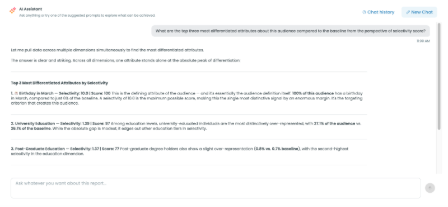
The AI Chat Assistant supports conversational, natural language prompts that allow users to ask detailed questions about their report data.
For example, users may ask questions related to:
- Audience behaviors
- Interests and affinities
- Demographic trends
- Engagement patterns
- Report insights
- Audience characteristics
This conversational approach helps simplify report analysis by allowing users to focus on the insights they need rather than manually locating data across multiple report tabs.
---
### **Combining AI Chat With Dashboard Navigation**
The AI Chat Assistant is designed to work alongside the existing reporting interface. Users can continue navigating through report tabs and visualizations while also using AI Chat to:
- Explore more specific questions
- Clarify report findings
- Investigate trends in greater detail
- Surface insights more quickly
- [Access & Account Setup](https://knowledge.audiense.com/en/soprism/access-account-setup?hsLang=en#main-content)
- [Overview](https://knowledge.audiense.com/en/soprism/access-account-setup?hsLang=en#overview)
- [Access needed](https://knowledge.audiense.com/en/soprism/access-account-setup?hsLang=en#access-needed)
- [Soprism Account Setup](https://knowledge.audiense.com/en/soprism/access-account-setup?hsLang=en#soprism-account-setup)
- [Soprism Mindset Glossary](https://knowledge.audiense.com/en/soprism/soprism-mindset-glossary?hsLang=en)
- [Soprism Report Creation](https://knowledge.audiense.com/en/soprism/soprism-report-creation?hsLang=en)
- [Soprism Report Results](https://knowledge.audiense.com/en/soprism/soprism-report-results?hsLang=en)
- [Specific Useful Features](https://knowledge.audiense.com/en/soprism/specific-useful-features?hsLang=en)
- [Meta Understanding](https://knowledge.audiense.com/en/soprism/meta-understanding?hsLang=en#main-content)
- [Meta Ecosystem](https://knowledge.audiense.com/en/soprism/meta-understanding?hsLang=en#meta-ecosystem)
- [Custom Audiences](https://knowledge.audiense.com/en/soprism/meta-understanding?hsLang=en#custom-audiences)
- [Lookalike Audiences](https://knowledge.audiense.com/en/soprism/meta-understanding?hsLang=en#lookalike-audiences)
- [Facebook Fan pages](https://knowledge.audiense.com/en/soprism/meta-understanding?hsLang=en#facebook-fan-pages)
- [FAQs](https://knowledge.audiense.com/en/soprism/faqs?hsLang=en#main-content)
- [Account set up](https://knowledge.audiense.com/en/soprism/faqs?hsLang=en#account-set-up)
- [Audiences creation](https://knowledge.audiense.com/en/soprism/faqs?hsLang=en#audiences-creation)
- [Soprism platform](https://knowledge.audiense.com/en/soprism/faqs?hsLang=en#soprism-platform)
[-1.svg "Audiense Logo (1)-1")](http://www.buxtonco.com)
[mailto:email@email.com](mailto:email@email.com)
Copyright © 2026, Buxton